> For the complete documentation index, see [llms.txt](https://docs.getdot.ai/llms.txt). Markdown versions of documentation pages are available by appending `.md` to page URLs; this page is available as [Markdown](https://docs.getdot.ai/integrations/code-repositories/dbt-core.md).
# dbt Core
Enrich your tables with dbt descriptions, SQL, lineage, and data sources
Connect a dbt project repository so Dot understands your transformation logic, lineage, and data sources. This leads to better answers -- Dot can write more accurate SQL, explain where data comes from, and answer broader questions across your data stack.
{% hint style="info" %}
**Requirements**
* A **dbt project** hosted in a Git repository (GitHub, GitLab, Bitbucket, or any HTTPS-accessible repo)
* A **database connection** already configured in Dot that matches the dbt project's target database
{% endhint %}
## Connect Your dbt Repository
Go to **Settings** > **Connections** and scroll to find **dbt Repository**.
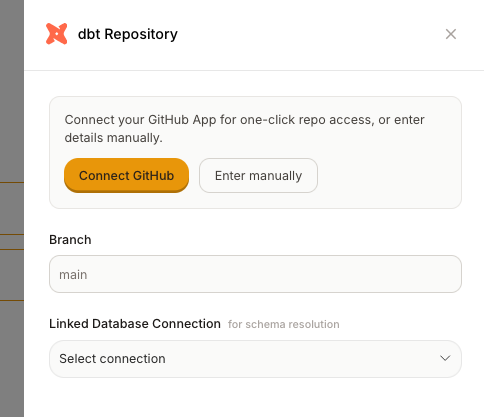
The dbt Repository connection form
### Option A: Via GitHub App (recommended)
1. Click **Connect GitHub** and install the Dot GitHub App on your organization
2. Select your **repository** from the dropdown
3. Set the **branch** (leave blank for the repository's default branch)
4. Select the **Linked Database Connection** -- this tells Dot which database the dbt models target
5. Click **Connect**
### Option B: Manual
1. Click **Enter manually**
2. Enter the **Repository URL** (e.g., `https://github.com/your-org/dbt-analytics`)
3. Enter an **Access Token** (optional for public repos; for private repos, use a GitHub PAT with repo read access)
4. Set the **branch** (leave blank for the repository's default branch)
5. Select the **Linked Database Connection**
6. Click **Connect**
Dot clones the repository, parses the dbt project, and matches models to your existing tables.
Dot reads the project with `dbt parse`, so make sure your project parses. If a few files fail, Dot works around them and shows a workaround count next to **Last synced**. Hover over the count to see which files. If the project still doesn't parse, the sync fails.
## What Gets Synced
Dot extracts the following from your dbt project:
* Model and column descriptions
* Column tests, such as `unique` and `not_null`
* Model SQL
* Upstream/downstream lineage
* Root data sources
* Tags and governance metadata
Dot syncs the repository once a day. To choose your own frequency and time, open the **dbt Repository** connection and turn on **Schedule sync**. To sync right away, click **Sync**.
## What It Looks Like
Each matched table shows enriched descriptions, fields, and a compact dbt lineage indicator:
A table enriched with dbt metadata -- descriptions, fields, and upstream/downstream lineage
## Linked Database Connection
The **Linked Database Connection** dropdown tells Dot which database to match models against. For example, if your dbt project targets a Snowflake warehouse, select your Snowflake connection. Dot matches each model to the table dbt builds for it in that connection, by schema and table name. The table name is the model's `alias` if it has one, otherwise the model name.
## Allow Dot IPs
If your organization uses IP allowlisting to manage Git access, Dot will only access your repository through the following IPs:
* `5.78.211.110`
* `178.105.217.177`
---
# Agent Instructions
This documentation is published with GitBook. GitBook is the documentation platform designed so that both humans and AI agents can read, navigate, and reason over technical content effectively. Learn more at gitbook.com.
## Querying This Documentation
If you need additional information that is not directly available in this page, you can query the documentation by asking a question.
Perform an HTTP GET request on the following URL with the `ask` and `goal` query parameters:
```
GET https://docs.getdot.ai/integrations/code-repositories/dbt-core.md?ask=&goal=
```
`ask` is the immediate question: it should be specific, self-contained, and written in natural language.
`goal` is what the user is ultimately trying to achieve, the reason they need the answer. Sharing it helps GitBook give you a better, more relevant answer. A goal is most helpful when it describes the outcome the user wants rather than restating the question. For example, with `ask=how do I create an API token`, a goal like `automate deployments from our CI pipeline` lets GitBook tailor the answer to that use case.
The response will contain a direct answer to the question and relevant excerpts and sources from the documentation.
Use this mechanism when the answer is not explicitly present in the current page, you need clarification or additional context, or you want to retrieve related documentation sections.