> For the complete documentation index, see [llms.txt](https://docs.getdot.ai/llms.txt). Markdown versions of documentation pages are available by appending `.md` to page URLs; this page is available as [Markdown](https://docs.getdot.ai/integrations/sso/google.md).

# Google

## Integrating Single Sign-On (SSO) with Google for Dot

This guide walks you through setting up Google as an SSO provider for Dot using Google Cloud's OAuth 2.0 credentials.

### Step 1: Open Google Cloud Console

1. Go to the [Google Cloud Console](https://console.cloud.google.com/).
2. Select an existing project or create a new one for your organization.

### Step 2: Configure the OAuth Consent Screen

1. Navigate to **APIs & Services** > **OAuth consent screen**.
2. Select **Internal** (recommended for Google Workspace organizations — only users in your organization can sign in) or **External**.
3. Fill in the required fields: App name, User support email, and Developer contact email.
4. Click **Save and Continue** through the remaining steps.

### Step 3: Create OAuth 2.0 Credentials

1. Navigate to **APIs & Services** > **Credentials**.
2. Click **Create Credentials** > **OAuth client ID**.
3. Select **Web application** as the application type.
4. Give it a name, e.g., `Dot SSO`.

### Step 4: Set the Redirect URI

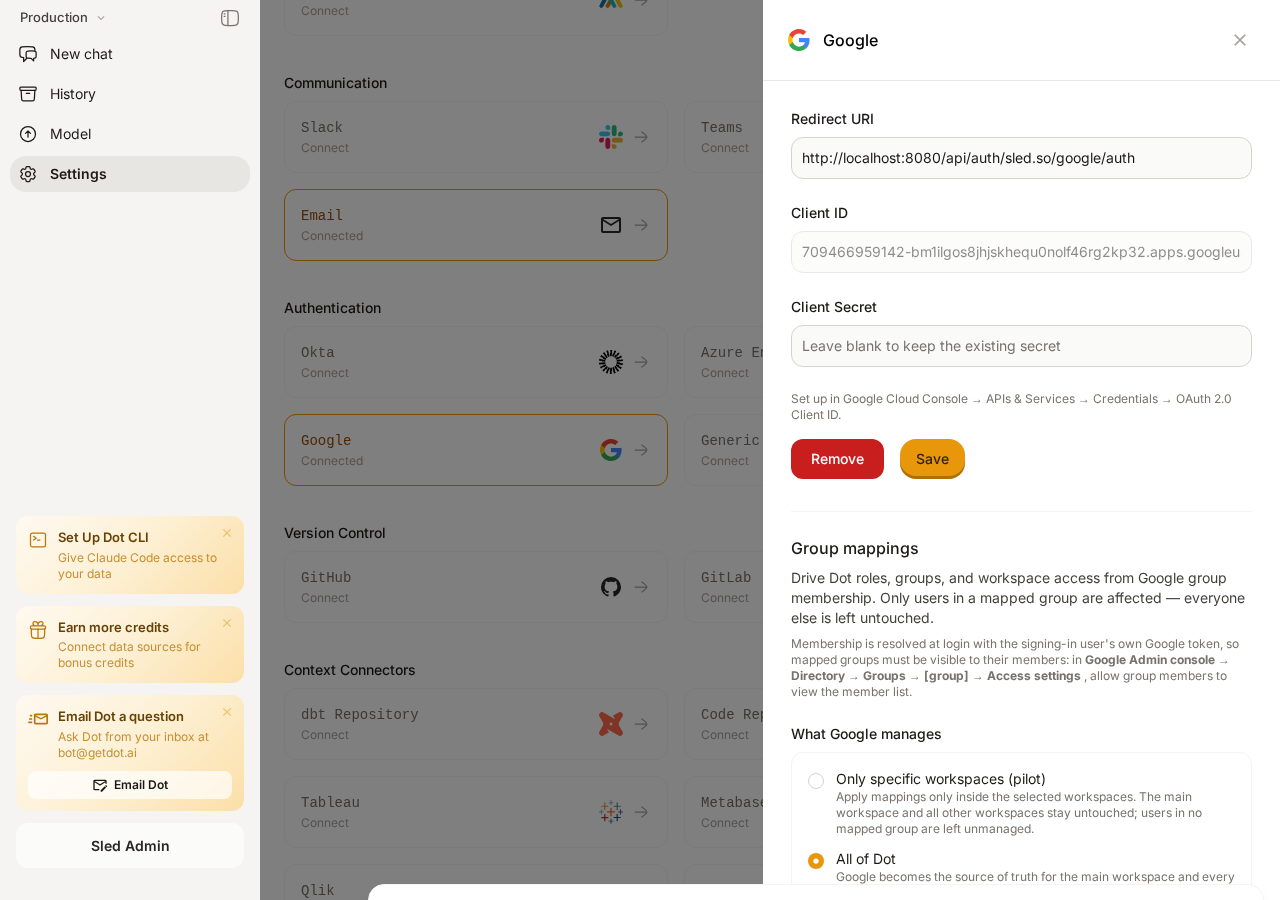
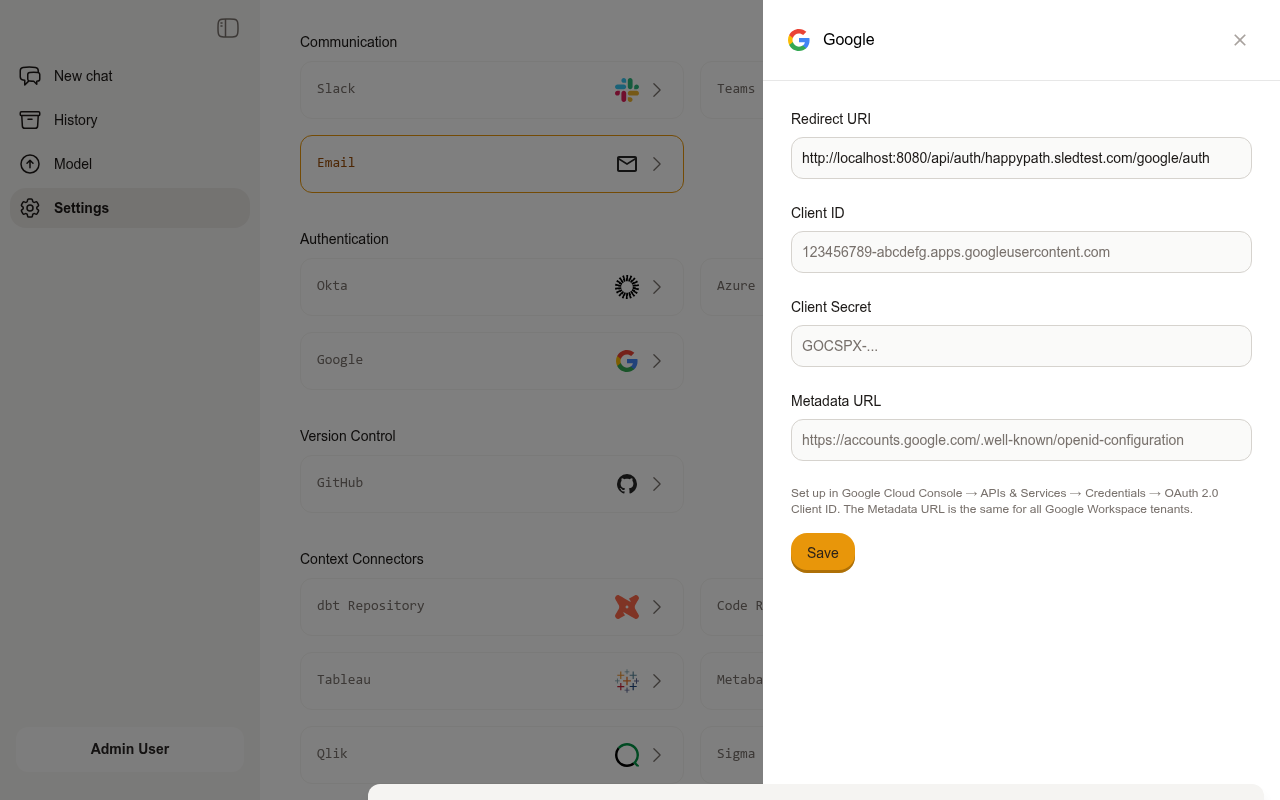
1. In a separate browser tab, go to your **Dot Settings** and click on the **Google** card under Authentication.
2. Copy the **Redirect URI** shown at the top of the form.
3. Return to Google Cloud Console and paste it into the **Authorized redirect URIs** field.

<figure><img src="/files/tlG1cDsqvFGBjkL9omP3" alt=""><figcaption><p>The Dot Google SSO configuration form showing the Redirect URI to copy</p></figcaption></figure>

### Step 5: Copy Client ID and Client Secret

1. After creating the OAuth client, Google will display the **Client ID** and **Client Secret**.
2. Copy both values — you'll need them in the next step.

### Step 6: Configure Dot with Google Credentials

1. Go back to your **Dot Settings** > **Google** section.
2. Paste the **Client ID** and **Client Secret** into the respective fields.
3. Click **Save** to apply the settings.

{% hint style="info" %}
The Google metadata URL (`https://accounts.google.com/.well-known/openid-configuration`) is automatically configured by Dot — no manual entry needed.
{% endhint %}

### Finalizing the Integration

Test the SSO integration by signing out and signing back in with Google.

By following these steps, you will have successfully set up SSO with Google for your Dot application. Ensure that all copied values are kept secure and are only shared with authorized personnel within your organization.

## Optional: Restrict Which Users Can Sign In

If you selected **Internal** for the OAuth consent screen in Step 2, only users within your Google Workspace organization can sign in — no further restriction is needed.

If you selected **External**, you can restrict access by:

1. Going to **APIs & Services** > **OAuth consent screen** in Google Cloud Console.
2. Under **Test users**, adding only the specific email addresses that should have access (while the app is in "Testing" status).
3. To allow all users, submit the app for verification to move it to "Production" status.


---

# Agent Instructions
This documentation is published with GitBook. GitBook is the documentation platform designed so that both humans and AI agents can read, navigate, and reason over technical content effectively. Learn more at gitbook.com.

## Querying This Documentation
If you need additional information that is not directly available in this page, you can query the documentation dynamically by asking a question.

Perform an HTTP GET request on the current page URL with the `ask` query parameter, and the optional `goal` query parameter:

```
GET https://docs.getdot.ai/integrations/sso/google.md?ask=<question>&goal=<endgoal>
```

`ask` is the immediate question: it should be specific, self-contained, and written in natural language.
`goal` is optional and describes the broader end goal you are ultimately trying to accomplish on behalf of the user. GitBook uses it to tailor the answer towards what is most useful for that goal.

The response will contain a direct answer to the question and relevant excerpts and sources from the documentation.

Use this mechanism when the answer is not explicitly present in the current page, you need clarification or additional context, or you want to retrieve related documentation sections.